Live Cam Privacy: Browser, Account and Payment Checklist
A live cam privacy check should separate what is visible on your device, what other participants can see, and what the destination provider may hold about an account or payment. A private room or private browser window does not make all three layers anonymous.
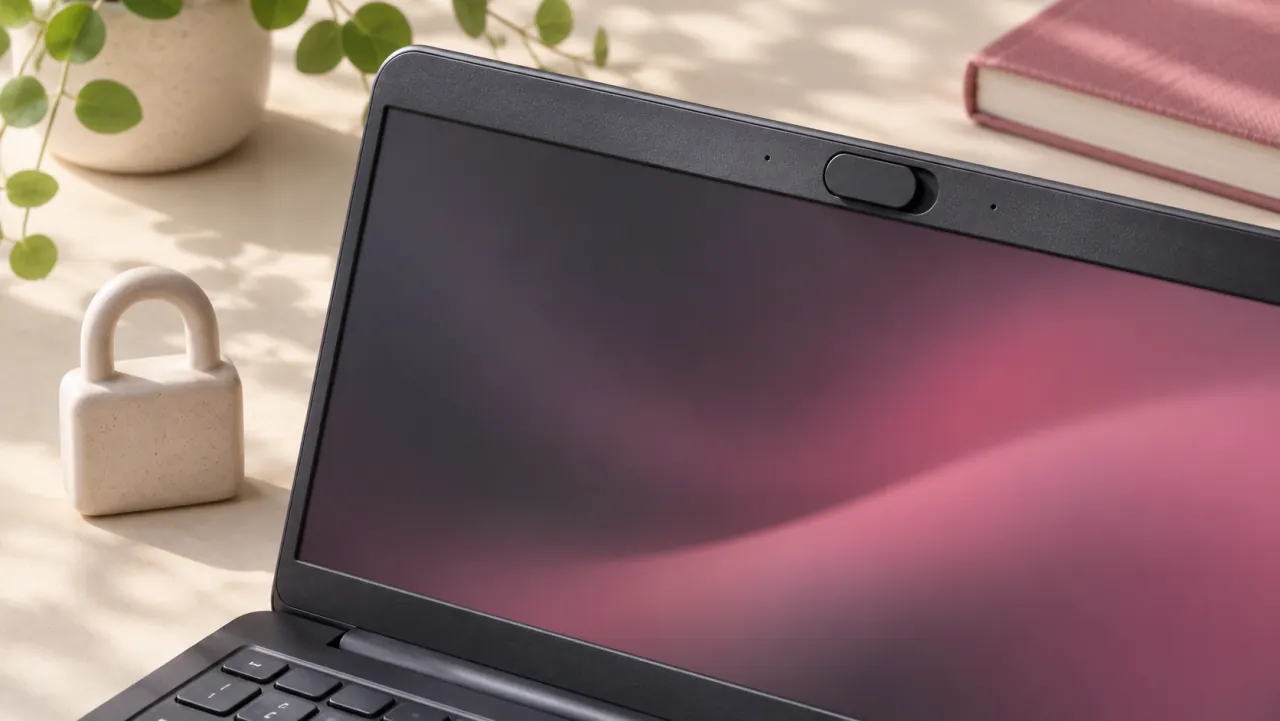
AI-generated editorial illustration: webcam with a physical cover.
Before visiting: decide what you will share
- Viewing only: leave camera and microphone capture off unless you deliberately choose a feature that needs them.
- Account identity: use a unique password and a username that is not an identifying public profile. Review recovery email and notification settings.
- Shared device: consider who can see saved passwords, open tabs, downloads and lock-screen previews.
- Payment: read the provider’s billing and receipt information before entering payment details.
During a visit: distinguish public and restricted visibility
Public chat can expose messages and usernames to other viewers. A direct message or limited-access session has different audience rules, but that does not prove that no records are kept. Do not share your home address, workplace, financial information or account credentials. Read the provider’s current privacy and recording terms before using a paid format.
If you choose to share your camera or microphone, check the exact domain in the permission prompt. Chrome’s official camera and microphone guide explains how to review allowed sites and remove an existing permission. Follow the instructions for your device; managed browsers may restrict changes.
What private browsing changes
Private browsing mainly limits information retained locally after the session. Google explains that Incognito does not hide activity from websites or network operators, and downloaded files or saved bookmarks can remain on the device. Signing into an account also identifies that session to the service. Closing a window does not delete provider-held account or transaction records.
After a visit: end the account session and review access
- Use the provider’s sign-out control and close its tabs on a shared device.
- Remove permissions you no longer need and review notifications that could appear later.
- Check saved credentials and downloaded files instead of assuming private browsing removed everything.
- If you want deletion, use the provider’s documented account and data-request process. Keep support correspondence free of passwords and full payment details.
Where to resolve a specific problem
Use the provider’s official support for an account, recording, charge or deletion question. SexLiveFree’s privacy policy applies to this discovery site, not every destination. For payment visibility, continue with receipts and unfamiliar billing charges. For a player problem, use the troubleshooting guide. For audience rules, compare public, group and private access. These steps reduce avoidable exposure; they cannot guarantee confidentiality. Adults 18+ only.